Blog
JSON Prompts for Ideogram 4 in ComfyUI: A Practical Guide to Controlled Generation

Mickael
mediapixel team
Ideogram 4 changes the way I think about prompting.
Instead of treating a prompt as one long paragraph full of style tags, camera terms, constraints, and corrections, Ideogram 4 can work with a structured JSON prompt. This makes the prompt easier to read, easier to debug, and much better suited to precise composition work inside ComfyUI.
This article is a practical guide based on my own prompt-building process with Ideogram 4, ComfyUI, and the Ideogram 4 Prompt Builder KJ node from KJNodes.
The goal is simple: write prompts that describe an image like a structured art direction document, not like a chaotic keyword soup.
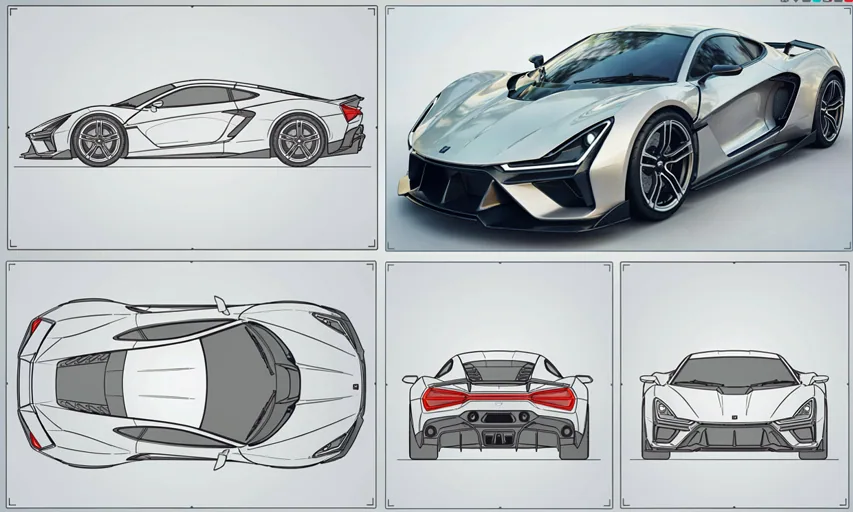
Why JSON prompts matter
A normal text prompt often mixes several different responsibilities in the same sentence:
- the subject
- the style
- the lighting
- the camera angle
- the background
- the position of each character
- text placement
- negative constraints
- color palette
- gameplay function, asset category, and production details
That can work, but it becomes fragile when the scene gets complex.
A JSON prompt separates those responsibilities into predictable blocks. Instead of saying everything at once, you tell the model:
- what the image is about,
- how it should look,
- where the scene takes place,
- which elements appear in the composition,
- how those elements are positioned.
For Ideogram 4, this is especially useful because the model can understand structured prompts with descriptions, style blocks, element lists, optional bounding boxes, and color palettes.
The core structure
A clean Ideogram 4 JSON prompt can be organized around three main sections:
{
  "high_level_description": "...",
  "style_description": {
    "aesthetics": "...",
    "lighting": "...",
    "medium": "...",
    "art_style": "...",
    "color_palette": ["#...", "#...", "#..."]
  },
  "compositional_deconstruction": {
    "background": "...",
    "elements": [
      {
        "type": "obj",
        "desc": "..."
      }
    ]
  }
}
The exact wording inside each field matters more than the number of fields. The point is not to make the JSON look complicated. The point is to make every field do one job.
When you use bounding boxes, create them visually in the KJ node and copy the generated values. The examples in this article avoid invented numeric bbox values because those values should come from the actual layout editor.
Field by field
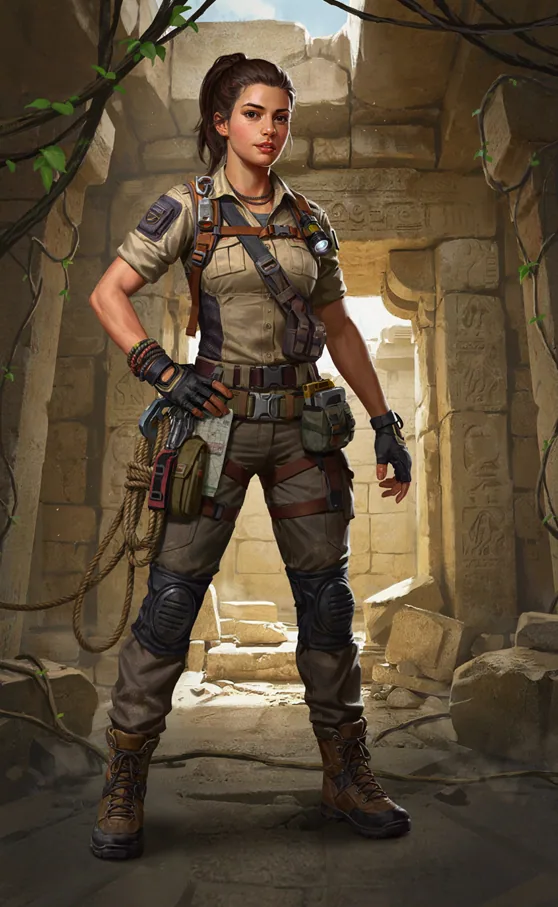
high_level_description
This is the summary of the whole image.
It should describe the subject, asset category, mood, intended use, environment, and exact asset set. It should not become a long list of camera or layout instructions.
Weak example:
A beautiful anime illustration, detailed, cinematic, colorful.
Better example:
A professional Unreal Engine marketplace-style asset concept sheet showing a modular sci-fi cargo crate set with one hero crate, two smaller variants, and clear material separation for 3D modeling.
The second version tells the model what kind of asset is being created, how many variants should appear, and why the image is useful for a production pipeline.
style_description.aesthetics
This field defines the broad visual identity.
Use it for general artistic direction:
game-ready stylized realism, clean production asset presentation, readable silhouettes, Unreal Engine marketplace visual language
Do not overload it with layout instructions. Those belong in the element descriptions or bounding boxes.
lighting
Lighting should be explicit.
Instead of writing only “beautiful lighting”, describe how the light behaves:
neutral studio lighting with soft contact shadows, clear bevel highlights, and readable material separation across metal, rubber, and painted surfaces
Lighting is one of the easiest ways to stabilize mood.
medium
Keep this concise.
Examples:
digital game asset concept art
digital painting
cinematic 3D render
This field should not become another full style prompt.
art_style
This is where the strongest rendering instructions go.
For illustration prompts, use this field to define rendering technique, proportions, texture, camera feeling, and important cultural constraints.
Example:
game-ready Unreal Engine asset concept with clean silhouettes, readable bevels, modular construction, realistic material separation, trim-sheet friendly details, and shapes suitable for 3D modeling
For photographic prompts, I prefer replacing art_style with a photo field, because the instructions are different: lens, realism, depth of field, exposure, film stock, studio conditions, and so on.
color_palette
Color palettes are useful when the scene needs a controlled look.
Use uppercase hex colors:
"color_palette": ["#1F2937", "#9CA3AF", "#F97316", "#111827", "#E5E7EB"]
I usually keep the main palette short. Five to ten colors are enough for most illustrated scenes.
Compositional deconstruction
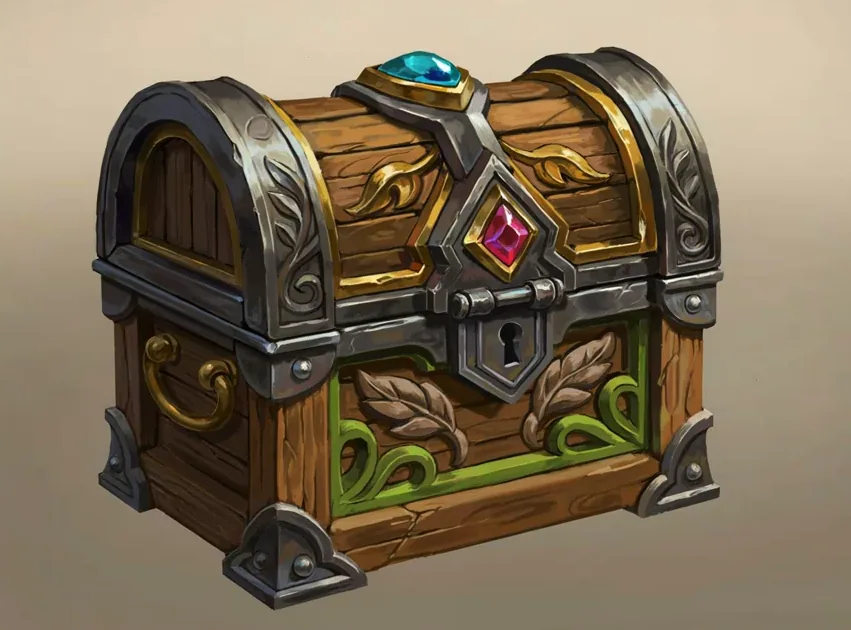
The compositional_deconstruction block is where the image becomes spatial.
It has two important parts:
"compositional_deconstruction": {
  "background": "...",
  "elements": []
}
background
The background should describe the complete presentation setting, depth, environment type, scale cues, and production context.
For example:
A clean Unreal Engine marketplace presentation scene with a neutral floor plane, subtle grid backdrop, small scale markers, and soft shadows that make the modular asset shapes easy to read.
Notice that this does not merely say “game asset background”. It describes visible evidence.
That distinction is important. The model responds better when we describe what should be seen, not only the abstract label.
elements
Each important asset, variant, or supporting object gets its own element.
Example:
{
  "type": "obj",
  "desc": "A modular sci-fi cargo crate variant placed as the main asset, with reinforced corners, painted metal panels, rubber edge protectors, readable bevels, subtle wear, and a silhouette suitable for an Unreal Engine environment pack."
}
The desc field should include asset identity, placement, function, shape language, material separation, scale cues, and relationship to the full presentation sheet.
For complex asset sheets, this is much more reliable than putting every variant and material detail into one long global paragraph.
Using bounding boxes with the KJ node
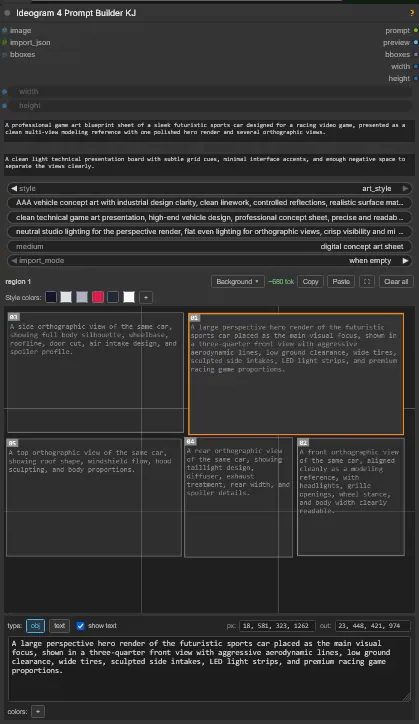
The Ideogram 4 Prompt Builder KJ node makes JSON prompting much more practical inside ComfyUI because it gives you a visual way to place elements.
Instead of guessing coordinates manually, you can place blocks in the node’s visual editor and copy the resulting values.
In this KJ node setup, the bounding box order is:
[top, left, bottom, right]
That is important because many image tools use a different mental model, such as [x, y, width, height] or [left, top, right, bottom].
The safest method is:
- create the rough layout visually in the KJ node,
- copy the generated bbox values,
- keep the coordinates stable,
- improve the descriptions instead of constantly guessing new coordinates.
Bounding boxes are not a replacement for good descriptions. They are a placement guide. The element text still needs to explain the subject clearly.
Write positive visual evidence, not negative prompt walls
One of the most useful habits with Ideogram 4 JSON prompts is to avoid long negative lists.
Instead of writing:
no bad geometry, no messy topology, no unreadable materials, no random props
write visible positive evidence:
exactly three modular sci-fi cargo crate variants are present, each with the same design language, clear bevels, painted metal panels, rubber trims, and readable scale details
This gives the model something to build, not only something to avoid.
The same principle works for vehicles, props, modular kits, materials, silhouettes, and gameplay-readable details.
For example, if an asset should feel heavy and industrial, do not rely only on the word “heavy”. Describe visible signs:
thick reinforced corners, broad rubber feet, large metal hinges, deep bevels, heavy handles, and compact grounded proportions
That kind of description is more controllable because it creates visual evidence.
Example JSON prompt
Here is a compact example for a game asset concept sheet intended for Unreal Engine production:
{
  "high_level_description": "A professional Unreal Engine game asset concept sheet showing a modular sci-fi cargo crate set for a futuristic warehouse or hangar environment, with one hero crate and two smaller variants.",
  "style_description": {
    "aesthetics": "game-ready stylized realism, clean production asset presentation, readable silhouettes, modular environment kit design",
    "lighting": "neutral studio lighting with soft contact shadows, clear bevel highlights, and readable material separation across painted metal, rubber, and plastic parts",
    "medium": "digital game asset concept art",
    "art_style": "Unreal Engine marketplace-style asset presentation with clean hard-surface design, readable bevels, modular construction, trim-sheet friendly panel details, controlled edge wear, and clear 3D modeling reference value",
    "color_palette": ["#1F2937", "#9CA3AF", "#F97316", "#111827", "#E5E7EB", "#3B82F6"]
  },
  "compositional_deconstruction": {
    "background": "A clean neutral presentation board with a subtle floor grid, soft shadows, small scale markers, and enough empty space to separate the asset variants clearly.",
    "elements": [
      {
        "type": "obj",
        "desc": "A large hero sci-fi cargo crate placed as the main asset, with reinforced corners, painted metal panels, rubber edge protectors, readable bevels, heavy side handles, subtle wear, and a strong rectangular silhouette suitable for a futuristic Unreal Engine environment."
      },
      {
        "type": "obj",
        "desc": "Two smaller cargo crate variants using the same design language, with different proportions, compatible panel lines, matching rubber trims, and consistent material treatment for modular environment use."
      },
      {
        "type": "obj",
        "desc": "Small supporting material swatches and detail callouts showing painted metal, black rubber, warning-color accents, screw details, and edge wear, arranged as a clean production reference."
      }
    ]
  }
}
This prompt is not just decorative JSON. Each section has a purpose:
- the top-level description defines the story,
- the style block defines the visual language,
- the background defines the world,
- each element defines a subject,
- each bbox guides placement.
Common mistakes
1. Making the global description too vague
A vague summary makes the rest of the prompt unstable.
Bad:
A beautiful game asset.
Better:
A modular Unreal Engine sci-fi doorway kit with one closed door, one open frame variant, matching wall trims, readable bevels, and material separation for 3D modeling.
Specificity helps.
2. Repeating the same subject in multiple elements
If two element blocks describe the same asset, the model may create duplicates.
When one object has several details, combine them into one element whenever possible.
3. Using abstract labels without visible details
Words like “futuristic”, “stylized”, “realistic”, or “modular” are useful, but they are not enough.
Add visible construction:
painted metal sci-fi door panel with chamfered edges, rubber sealing strips, inset warning lights, exposed bolts, and a recessed handle
That is much stronger than only writing:
sci-fi door
4. Treating bbox values as final pixel coordinates
In the KJ node setup, bbox values are a visual layout control, not necessarily the final output pixel dimensions. Use them to guide composition, then let the model adapt anatomy, perspective, and scale naturally.
5. Mixing dataset metadata into generation prompts
For LoRA datasets, tags and metadata can be useful. For interactive generation prompts, keep the JSON clean unless your pipeline explicitly supports those extra fields.
A generation prompt should focus on the image.
Practical checklist
Before sending a JSON prompt to Ideogram 4, I check the following:
- Does
high_level_descriptionstate the exact asset category, variants, intended use, mood, and setting? - Does the style block separate aesthetics, lighting, medium, and rendering style?
- Does the background describe visible scenery and depth?
- Does every important asset, variant, character, prop, or supporting detail have one clear element block?
- Are bounding boxes copied from the visual editor instead of guessed?
- Are constraints written as positive visual evidence?
- Are repeated subjects avoided?
- Are game asset details described through construction, function, materials, scale cues, and silhouette?
- Are hex colors uppercase and limited to useful scene-defining colors?
- Is the final JSON valid UTF-8?
Final thoughts
JSON prompting is not about making prompts look technical. It is about making visual direction clearer.
For Ideogram 4, this structured approach is especially powerful because it gives the model a cleaner map of the image: asset category, style, space, variants, materials, and relationships.
The KJ node inside ComfyUI makes this prompt-building process much more comfortable by turning layout into something visual. Instead of fighting with a giant paragraph prompt, you can build an asset sheet like an art director: place the main object, describe each variant clearly, and let the model interpret the composition with stronger guidance.
For game asset concept sheets, props, vehicles, modular kits, environment pieces, and text-heavy designs, JSON prompts are now one of the most useful tools in my ComfyUI prompt-building process.
You can find the complete JSON prompt examples used in this article on GitHub. This repository section contains prompt examples only, not complete ComfyUI graph files:
Download the JSON prompt examples on our Github